

How to Add a Slide to Shut Down Shortcut to Windows 10/11
If you want a more engaging approach to shut down your computer, follow this guide to add Slide to shut down to touch and non-touch screen devices in Windows 10.
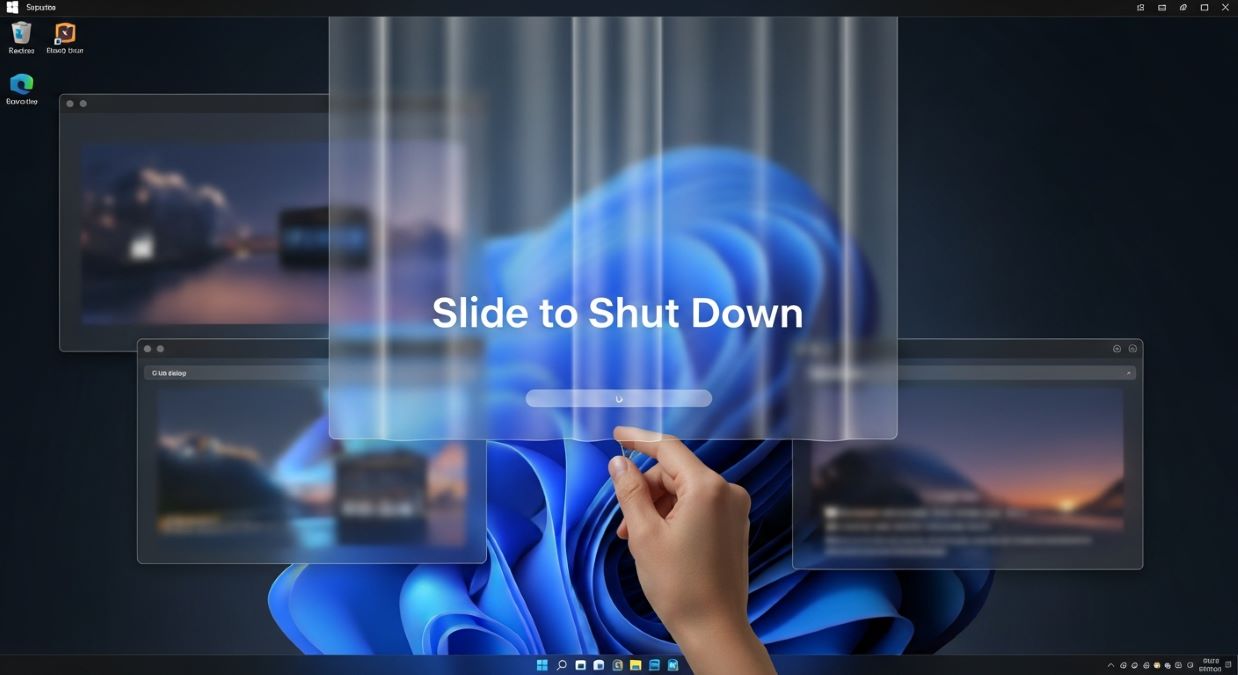
Are you tired of having to navigate through menus just to shut down your Windows 10 or 11 computer? Simplify your life with a slide to shutdown shortcut! Add this feature to your desktop or taskbar to save time and make shutting down your computer easy.

In this post, we’ll walk you through the basic steps of adding a slide to shut down shortcut to your Windows computer. Get ready to revamp your power options and say goodbye to old-fashioned ways of shutting down your computer.
Are you tired of navigating through menus just to shut down your computer? Save time and effort by adding a shutdown shortcut to your desktop or taskbar. Here’s how:
Slide to Shut Down Shortcut
Shutting down and restarting your computer are two of the easiest tasks in Windows 10. Microsoft introduced a new interactive approach to shutting down your device in Windows 8 with the “Slide to shut down your PC” gesture. This feature is still available in Windows 10 but is only enabled on tablets and Windows 10 Mobile devices when the power button is pressed and held.
To replicate this experience on a laptop or desktop, quickly create a shortcut with the appropriate command to enable “Slide to shut down your PC” in Windows 10 or 11, even on non-touchscreen devices.
How to enable the slide to shut down feature in Windows 10 or 11
If you want to shut down your PC in a more engaging way, follow these instructions to set up a Slide to Shut Down shortcut in Windows 10/11.
We’ll walk you through the steps to add the Slide to Shutdown shortcut to your computer in this Windows 10/11 guide.
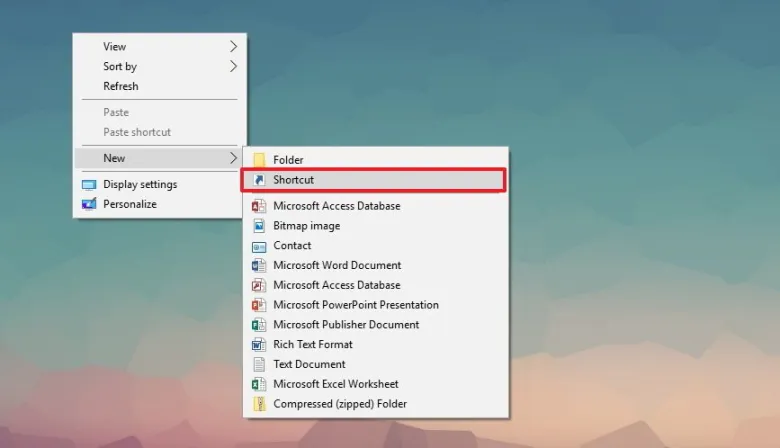
Step 1: Right-click on a space on the desktop, select New, and click on Shortcut.
Step 2: Copy and paste the following path: %windir%\System32\SlideToShutDown.exe Click next to continue.
%windir%System32SlideToShutDown.exe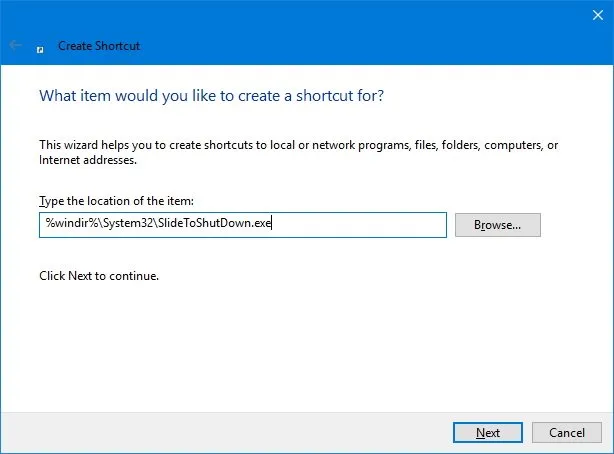
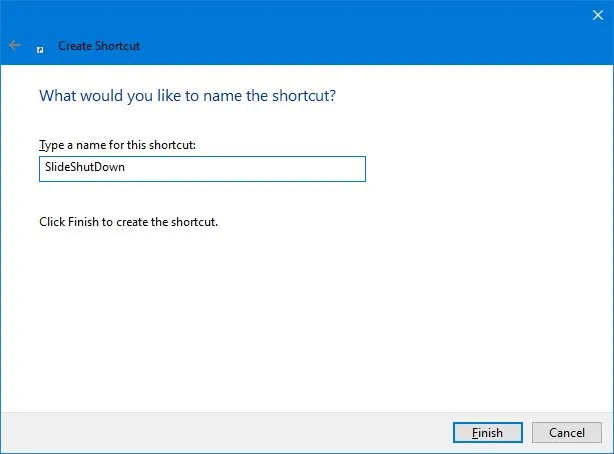
%windir%System32SlideToShutDown.exeStep 3: Enter a descriptive name for the shortcut (e.g., SlideShutdown). Click Finish to complete the task.
Step 4: Right-click the newly created shortcut and click on Properties.
Step 5: On the Shortcut tab, click the Change Icon button. Click OK to confirm that the path you specified doesn’t contain icons.
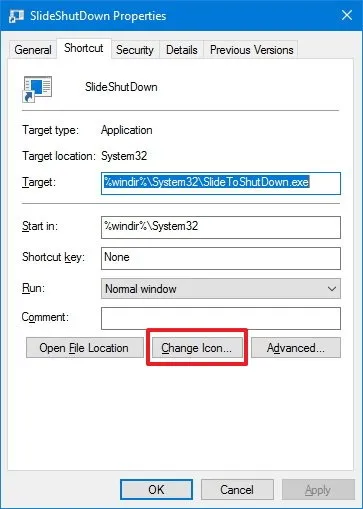
Step 6: Select an icon that best describes the shutdown button.
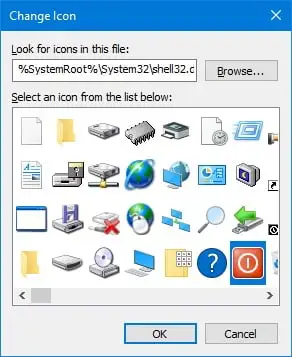
Step 7: Click OK. Click Apply. Click OK again to complete the task.
After completing the steps, you will have a shortcut that, when double-clicked, opens Slide to shut down your computer. Then, to turn off your device, simply touch or click and drag the shortcut to the bottom of the screen.
For faster access to the shutdown experience by touch or mouse, right-click the shortcut and choose “Pin to taskbar.”
Quick tip: You can use keyboard and mouse shortcuts. When Slide to Turn Off Your PC appears, press Enter to turn off your device.
FAQS
What is the shortcut for slide to shutdown?
Enable Slide to Shutdown. This trick is a real time saver for those always on the go. Right-click on the desktop > New > Shortcut. In the ensuing pop-up window, paste the following line of code: %windir%System32SlideToShutDown.exe.
Last Words
Adding a slide to shut down shortcut to Windows 10 or 11 may seem like a small change, but it can make your computer feel more like a smartphone or tablet. It’s also an exciting, novel way to shut down your computer. Give it a try and see if you like it!